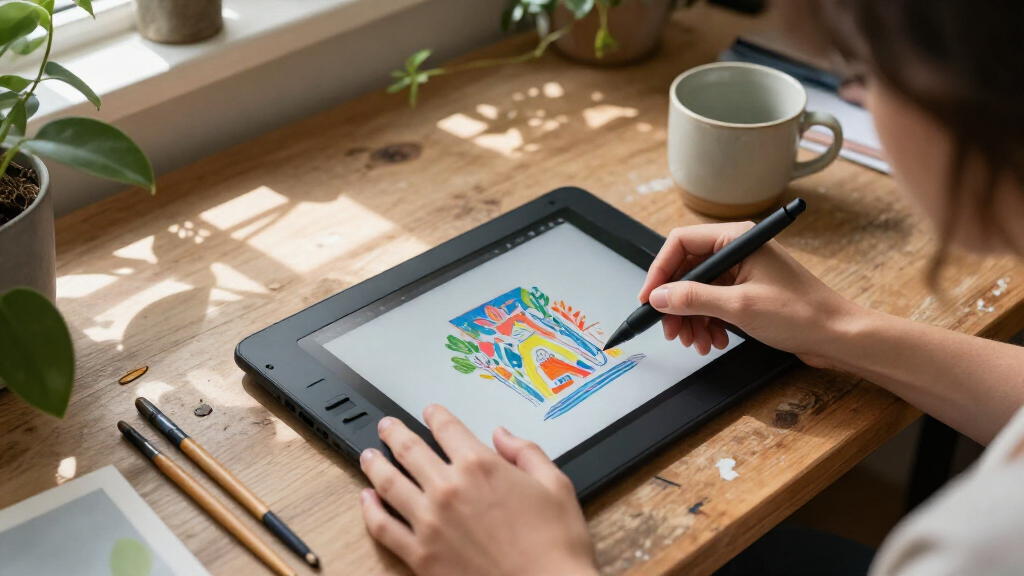

Choosing a digital art tablet usually comes down to a practical question: do you want a dedicated drawing surface for a computer you already own, or a portable device that can make art on its own? The Wacom Intuos is a screenless pen tablet that works with a computer, while an Apple iPad paired with Apple Pencil puts the canvas directly beneath the stylus and runs drawing apps without a separate computer. That difference shapes cost, workspace, mobility, and the feel of drawing. Intuos makes more sense for artists who already have a capable computer and want a dependable, focused tool. An iPad suits people who value drawing on the screen, working away from a desk, and using one device for art and everyday tasks.

Get art and craft supplies delivered free with Prime
- Fast, free delivery on millions of items
- Prime Video, Amazon Music and more included
- Member-only deals all year

XP-Pen Artist 13.3 Pro Drawing Tablet with Screen
- ✔ Display: 13.3-inch Full HD, fully laminated
- ✔ Color gamut: 88% NTSC, 91% Adobe RGB, 123% sRGB
- ✔ Stylus: Battery-free, 16,384 pressure levels, 60-degree tilt, 220 RPS

Frunsi RubensTab T11 Pro Standalone Drawing Tablet
- ✔ Display: 10.1-inch Full HD IPS, 1920 × 1200
- ✔ Processor: Octa-core CPU
- ✔ Battery: 5800 mAh; up to 5 hours of use

GAOMON PD1161 11.6-Inch Full HD Drawing Tablet with Screen and Battery-Free Stylus
- ✔ Display: 11.6-inch Full HD IPS
- ✔ Color gamut: 72% NTSC (100% sRGB)
- ✔ Display colors: 16.7 million
At a Glance
| Criteria | Wacom Intuos | Apple iPad with Apple Pencil | Winner |
|---|---|---|---|
| Drawing setup and screen | Screenless tablet; connect to a computer and look at its display while drawing. | Canvas appears on the tablet itself; Apple Pencil support depends on the iPad model and pencil generation. | B |
| Portability | Light, but requires a compatible computer and a place to set up. | Self-contained and easy to use away from a desk. | B |
| Computer and app workflow | Uses desktop creative software on the connected computer. | Runs compatible iPad apps directly; some desktop workflows need file transfer or remote access. | Depends |
| Drawing feel and precision | Pressure-sensitive stylus input; hand and cursor are separated across two surfaces. | Direct screen drawing feels intuitive; pencil compatibility and features vary by model. | Depends |
| Versatility | Focused art input device; computer handles other tasks. | Also serves as a general-purpose tablet for media, notes, browsing, and other apps. | B |
| Total cost and value | Usually the lower-cost path if you already own a suitable computer; stylus is typically included. | Higher upfront cost when buying both iPad and Pencil; can replace or supplement other devices. | A |
XP-Pen Artist 13.3 Pro Drawing Tablet with Screen
For a computer-based drawing station, the XP-Pen Artist 13.3 Pro makes the strongest all-around case in this lineup. Its 13.3-inch Full HD display gives us more room for a canvas and tool panels than the 11.6-inch GAOMON, while the fully laminated construction is designed to reduce the gap between pen tip and cursor. That closer visual alignment matters when we are placing fine lines or working near the edge of a shape.The pen supports 16,384 pressure levels and 60-degree tilt, and the red dial plus eight customizable shortcut keys offer physical controls that can be assigned to repeated actions. Compared with the Frunsi, this is a more specialized drawing-display setup: we get a larger screen and more specified pen and workflow controls, but the computer must run the drawing software. The Frunsi can work on its own, making it the more portable choice when we do not want a laptop in the loop.Setup is the main compromise. The Artist 13.3 Pro connects to a computer, and its included 3-in-1 cable and power adapter may be part of the installation. We should also plan for desk space and cable management. Choose it when a larger screen and hands-on controls are central to our workflow; skip it if we need a self-contained tablet or want the most minimal portable setup.
Pros:
- 13.3-inch fully laminated Full HD display is the largest in this comparison.
- Battery-free stylus specifies 16,384 pressure levels and 60-degree tilt support.
- Red dial and eight customizable shortcut keys support a tailored workflow.
- Includes a foldable stand, pen holder, replacement nibs, and connection accessories.
Cons:
- Requires a compatible computer or laptop to run drawing software.
- Setup may involve the 3-in-1 cable and power adapter, adding cables to the workspace.
Best for: Artists who want a larger pen display with configurable shortcut controls for drawing on a Windows, Mac, Chrome OS, or Linux computer.
Not ideal for: Buyers who need a standalone tablet, a cable-free setup, or a screen that is easy to carry around without a computer.
Bottom line: Choose the XP-Pen Artist 13.3 Pro when we want the broadest drawing area and the most specified pen controls in a computer-connected setup.
“Choose the XP-Pen Artist 13.3 Pro when we want the broadest drawing area and the most specified pen controls in a computer-connected setup.”
Frunsi RubensTab T11 Pro Standalone Drawing Tablet
The Frunsi RubensTab T11 Pro is the clear choice when drawing should not depend on a computer. Its 10.1-inch Full HD touchscreen runs pre-installed drawing apps, connects over Wi-Fi, and supports multi-touch, so we can sketch, take notes, and move between everyday tablet tasks on one device. In this group, it is the only model that does not require a separate computer to get drawing started.That independence changes the comparison with both pen displays. The XP-Pen gives us a larger screen and lists more advanced pen details, while the GAOMON offers a larger matte drawing surface. The Frunsi answers a different need: portability with built-in software. It also comes with an adjustable stand case and accessories, which makes it easier to set up on a table without sourcing those basics separately. The battery-free pressure-sensitive pen means the pen itself does not need charging.We should take the stated battery life seriously when planning sessions. The tablet is rated for up to five hours of use and needs charging for portable operation, so extended days away from an outlet may require breaks or a charging plan. Its display is also smaller than either computer-connected alternative, and the provided details do not state a pen pressure-level count. Pick it for independence and general-purpose flexibility; look to XP-Pen or GAOMON if we mainly draw at a desk and prioritize screen size or specified pen controls.
Pros:
- Standalone operation with pre-installed drawing apps and Wi-Fi.
- 10.1-inch Full HD IPS touchscreen supports multi-touch.
- Battery-free pressure-sensitive pen does not need its own charging routine.
- Adjustable stand case and several drawing accessories are included.
Cons:
- Stated battery life is up to five hours, so longer portable use requires charging.
- Smaller display than the XP-Pen Artist 13.3 Pro and GAOMON PD1161.
- Provided specifications do not state a pressure-level count for the pen.
Best for: Beginners, students, and mobile-minded artists who want drawing apps and a pen on the tablet itself, without connecting a computer.
Not ideal for: Artists who need a larger drawing canvas, a computer-based software workflow, or long portable sessions without access to charging.
Bottom line: Choose the RubensTab T11 Pro when drawing independence matters more than a larger screen or detailed pen specifications.
“Choose the RubensTab T11 Pro when drawing independence matters more than a larger screen or detailed pen specifications.”
GAOMON PD1161 11.6-Inch Full HD Drawing Tablet with Screen and Battery-Free Stylus
The GAOMON PD1161 is a straightforward pen display for artists who want to draw on screen and prefer a matte surface. Its 11.6-inch Full HD IPS display uses anti-glare film to reduce reflections and provide a paper-like feel. Against the XP-Pen Artist 13.3 Pro, it gives up screen area and the red dial, but its surface treatment is a notable point of difference for bright rooms or anyone who dislikes a glossy drawing surface.The battery-free AP50 stylus supports 8,192 pressure levels and tilt, with two pen buttons; the tablet adds eight customizable keys. This is enough control to streamline repeated actions without relying entirely on keyboard shortcuts. Compared with the standalone Frunsi, the GAOMON offers a larger screen and specified pen sensitivity, but it is a display that depends on a Windows or Mac computer. Its HDMI and USB connection requirements may call for an adapter depending on the computer’s ports.We would choose this model when the matte finish and compact footprint are more important than a wider canvas. Its 11.6-inch screen is smaller than the XP-Pen’s 13.3-inch panel, and the stated color gamut is narrower than the XP-Pen figures provided. The GAOMON’s strengths are focused: anti-glare drawing, useful shortcut keys, and a battery-free pen. Skip it if we want a standalone device, broader operating-system compatibility, or the largest possible workspace in this selection.
Pros:
- 11.6-inch Full HD IPS screen with matte anti-glare film.
- Battery-free stylus supports 8,192 pressure levels and tilt.
- Eight tablet keys and two pen buttons can be customized.
- Includes replacement nibs, drawing glove, pen holder, and connection accessories.
Cons:
- Requires a Windows or Mac computer and is not standalone.
- HDMI and USB ports are needed; some computers may require an adapter.
- Smaller display than the XP-Pen Artist 13.3 Pro.
Best for: Artists with a Windows or Mac computer who prefer an anti-glare matte screen and want physical shortcut keys in a compact pen display.
Not ideal for: Buyers who want a standalone tablet, a larger screen, or compatibility with Chrome OS or Linux as specified for the XP-Pen.
Bottom line: Choose the GAOMON PD1161 when we value a matte, anti-glare drawing surface and a compact computer-connected setup.
“Choose the GAOMON PD1161 when we value a matte, anti-glare drawing surface and a compact computer-connected setup.”
As an Amazon Associate we earn from qualifying purchases.
Key Differences
The largest practical difference is where you look while drawing. With Wacom Intuos, your hand moves on the tablet while your eyes follow the computer monitor. This takes practice, but it leaves the art software on the larger screen and can feel natural to artists accustomed to desktop workflows. On an iPad, the stylus touches the canvas you are viewing, which is easier to grasp at first and makes sketching in a relaxed setting straightforward. The direct-screen approach does not automatically make someone a better artist, and the exact drawing experience depends on the iPad and Pencil combination.
The other major tradeoff is between a specialized accessory and a standalone device. Intuos is a cost-effective way to add pen input when you already own a computer that runs your preferred art software. The iPad costs more as a drawing purchase, yet its value can be stronger if you also use it for notes, reading, travel, or other tablet tasks. Software libraries and file handoffs also differ: Intuos relies on the connected computer, while iPad apps run locally and may not match every desktop app or studio workflow. Choose around the setup you will actually use, not just the appeal of a screen.
Detailed Comparison
Drawing setup and screen (Apple iPad with Apple Pencil wins — moderate)
The iPad wins for immediate, direct drawing: the canvas sits under Apple Pencil, so hand movement and visual feedback line up. The difference is moderate for beginners and sketching on the move, though artists used to pen displays or screenless tablets may have a clear preference. Intuos has no built-in display, so you watch the computer monitor while drawing. That separation can feel awkward initially, but it keeps the working area uncluttered and lets you use a larger monitor.
Portability (Apple iPad with Apple Pencil wins — major)
The iPad wins by a major margin when art needs to happen away from a fixed desk. It is a complete drawing setup once charged, with no computer connection required for compatible apps. Intuos itself is compact, but it depends on a computer, cable or supported connection, and a usable workspace. If your computer is already a laptop and you travel with it, the gap narrows; otherwise, the iPad is much easier to pick up and draw with.
Computer and app workflow (major difference)
This is a workflow-dependent tie. Intuos works through a computer, making it the straightforward choice for artists whose preferred tools, files, plug-ins, or production steps are built around desktop software. The iPad runs its own compatible apps and can make a self-contained sketching workflow simple, but transferring files or moving work between mobile and desktop software may add steps. Check that the apps and formats you rely on are supported before choosing.
Drawing feel and precision (moderate difference)
Neither has a universal win. Direct screen contact on iPad often feels intuitive, while Intuos separates the hand from the display and takes some adjustment. On either setup, control depends on the tablet or iPad model, stylus support, driver or app settings, and the artist’s preferences. The gap is moderate for someone learning on one device and minor for an experienced artist who adapts readily. Compare the specific models and confirm Pencil compatibility instead of assuming every combination offers the same features.
Versatility (Apple iPad with Apple Pencil wins — major)
The iPad wins by a major margin as a general-purpose device. Beyond drawing, it can handle tasks such as browsing, reading, and note-taking, so the purchase may serve several parts of daily life. Intuos is an input device for a computer and does not replace a tablet or computer; its narrower role is also its advantage for people who want a dedicated drawing surface and already have the rest of their setup.
Total cost and value (Wacom Intuos wins — major)
Intuos is usually the stronger value if you already own a suitable computer: the tablet is an addition to an existing setup, and its stylus is typically included. The iPad requires a larger initial outlay when you need to buy both the tablet and Apple Pencil, with compatibility and accessory choices varying by model. That premium can be worth paying if the iPad will also replace or supplement other devices, or if drawing directly on a portable screen matters every day. For drawing alone at a desk, Intuos is generally the more economical choice.
Wacom Intuos: Pros and Cons
Pros:
- Lower-cost way to add pen drawing to a computer you already own.
- Works with desktop creative software and computer-based production workflows.
- Focused tool with a stylus typically included.
Cons:
- No built-in screen; requires practice to coordinate hand and monitor.
- Depends on a computer and a suitable workspace.
- Does not double as a general-purpose tablet.
Apple iPad with Apple Pencil: Pros and Cons
Pros:
- Draw directly on the displayed canvas.
- Portable standalone setup for compatible apps.
- Useful for notes, media, browsing, and other tablet tasks as well as art.
Cons:
- Higher upfront cost, especially when buying both iPad and Pencil.
- Pencil compatibility and features vary across iPad models.
- Some desktop-focused workflows require app alternatives or file handoffs.
Who Should Choose What
Choose Wacom Intuos if:
- You already own a computer that runs the art software you want.
- You mainly draw at a desk and want an affordable pen input device.
- Your work depends on desktop apps, plug-ins, or established computer-based file workflows.
Choose Apple iPad with Apple Pencil if:
- You want to draw directly on the screen and value a short learning curve for that setup.
- You sketch while travelling, commuting, or relaxing away from a computer.
- You will use the iPad for non-art tasks too, making its higher cost useful across your day.
Skip both if: You need a standalone computer for demanding desktop software, or you are unsure about stylus comfort; try the specific device and pen before committing.
Value for Money
For drawing at a desk, Wacom Intuos usually delivers better value because it adds pen control to a computer you already own at a comparatively low cost. Paying more for an iPad makes sense when the direct-screen experience and portability are central to how you work, or when the device will also handle notes, reading, and other tasks. Compare the complete setup cost: iPad, compatible Apple Pencil, and any accessories you need, against the Intuos plus the computer you already have or would need to buy. If you need to purchase a computer just to use Intuos, its apparent price advantage may shrink.
Final Verdict
For most people who already own a capable computer and want to start digital drawing, choose Wacom Intuos. It is the more economical, focused option and supports a computer-based workflow without asking you to buy another full device. Choose an iPad with a compatible Apple Pencil if drawing on the screen, portability, and everyday tablet use justify the higher total cost. The deciding factor is whether you want a drawing accessory for your computer or a standalone tablet that happens to be excellent for art. If you need desktop software and frequent travel, check that your workflow works well on iPad before paying the premium.
Frequently Asked Questions
Is Wacom Intuos or an iPad easier for a beginner?
An iPad is often easier to understand at first because you draw on the screen where the marks appear. Intuos requires coordinating the hand on the tablet with the image on a separate monitor. Beginners can learn either setup, and the right choice depends on whether direct-screen drawing or computer-based software matters more.
Can Wacom Intuos work without a computer?
No. Intuos is a pen tablet that connects to a compatible computer; it does not run drawing apps on its own. An iPad can run compatible drawing apps as a standalone device.
Is an iPad worth paying more for digital art?
It can be worth the extra cost if you want direct screen drawing, portability, and a tablet for other parts of your day. If you draw mostly at a desk and already own a capable computer, Intuos is usually the better value.
Which option is better for professional art?
Neither is automatically better for professional work. Intuos suits desktop-centered production, while iPad suits mobile creation and apps that fit its workflow. Check the specific software, file formats, stylus compatibility, and handoff steps your work requires.