TL;DR
A digital art tablet can mean a pen tablet that maps to a separate monitor, a pen display you draw on directly, or a standalone tablet that runs art apps by itself. Choose based on your preferred drawing feel, software, workspace, and total cost; pressure levels alone don’t tell you how good a tablet will feel.
Your hand moves across a small surface, but a giant painted stroke appears on the monitor. That disconnect surprises many first-time digital artists, and it explains why the phrase digital art tablet can mean more than one kind of device.

Get art and craft supplies delivered free with Prime
- Fast, free delivery on millions of items
- Prime Video, Amazon Music and more included
- Member-only deals all year
Some tablets give you a blank drawing surface and show the artwork on a separate screen. Others let you draw directly on the image, while standalone models run creative apps without a computer. Each setup changes how your desk feels, what software you can use, and how much you need to spend.
This guide breaks down the three main tablet types, explains which features affect everyday drawing, and walks you through choosing a setup. By the end, you can match a tablet to your routine—whether you sketch on the train, paint at a desktop, or are buying your first drawing tool.
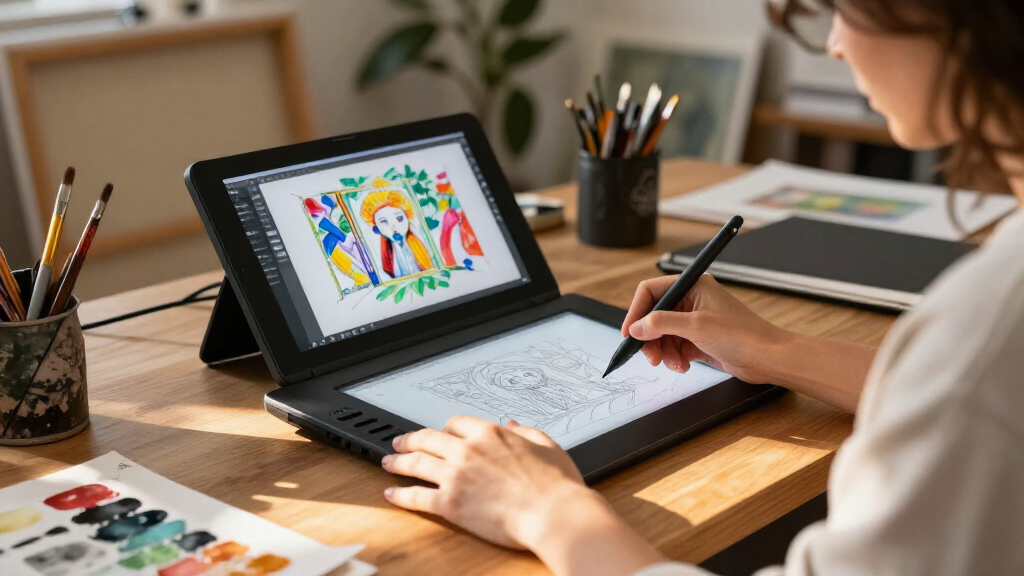
A pen tablet maps your strokes to a separate monitor; a pen display puts the canvas beneath your pen; a standalone tablet runs compatible apps on its own.
Pressure sensitivity helps when your art app and brush use pressure to change stroke width or opacity, but pressure-level counts alone don’t predict pen feel.
Compare screen quality, active area, software support, desk space, and connection needs before choosing a size or device type.
Budget for accessories such as a stand, protective film, replacement nibs, or software when they apply to your setup.
If you encounter lag, test the connection, app settings, driver, and computer performance before assuming you need a different tablet.
What Are the Three Types of Digital Art Tablets?
A digital art tablet is a device that lets you make artwork with a stylus in a digital app. The phrase can mean three main setups: a pen tablet with no screen, a pen display with a screen, or a standalone tablet that runs apps itself. The important difference is where the image appears and what other equipment the device needs; that determines how you coordinate your hand and eyes, where you can work, and what costs belong in the budget.
A pen tablet has a pressure-sensitive drawing surface, but you look at a separate monitor while you draw. Your hand and the cursor are physically apart, so early strokes can feel less direct: you watch the screen, then adjust your hand based on what you see. With practice, that separation can become routine, and it leaves the monitor unobstructed while keeping the tablet itself compact. A beginner sketching a cat at a desk might find the arrangement natural sooner than expected, while someone who relies on seeing the tip meet the line may prefer a screen.
A pen display shows your image beneath your pen, so you draw where you see the lines. That direct feedback can make tracing, precise inking, or learning hand-eye coordination feel more immediate, but it uses more desk space and usually depends on a connected computer. A standalone tablet also puts the canvas on screen, but it includes computing hardware and can run compatible art apps without a computer. An illustrator who wants to work in a café, for example, may value that freedom more than a larger desktop screen, while accepting that app features and file handling may differ from their computer setup.
The distinction matters when you compare prices and workflows. A pen tablet and most pen displays connect to a computer; a standalone device relies on its supported apps, storage, and file-sharing options. The purchase price alone can therefore be misleading: the connected options may require a computer, while the standalone option may mean buying or subscribing to different software. Before buying, picture where you’ll draw and which computer or app needs to open your projects.
Products Worth Considering

Garmin inReach Mini 2 Satellite Communicator Bundle, Black

YETI Tundra Haul Wheeled Cooler

Therabody Theragun Mini 3rd Generation Massage Gun, Black
As an affiliate, we earn on qualifying purchases.
Choose the Setup That Matches How You Like to Draw
Choose a pen tablet if you want a compact, often lower-cost surface and don’t mind watching a separate monitor. Choose a pen display if drawing directly on your image feels more natural and you already have a compatible computer. Choose a standalone tablet if portability and drawing without a computer matter most. These are choices about how you want to coordinate your hand and eyes, as well as where your work happens.
These options trade desk space, portability, and workflow in different ways. A pen tablet can leave your whole monitor visible while keeping the device small, and the hand-eye adjustment may be a small learning curve in exchange for a simpler desk setup. A pen display gives you direct hand-to-image feedback, which can help when placing detail precisely, but it needs room for the screen and often a stand; its weight and cables can make it less convenient to move. A standalone device can travel easily and work away from your desk, though its app selection and file workflow may differ from your desktop setup. If you frequently switch between mobile and desktop projects, consider how easily you can move layered files without losing tools or edits.
| Type | Where you see the artwork | Best fit |
|---|---|---|
| Pen tablet | Separate computer monitor | Budget-conscious desktop drawing |
| Pen display | On the drawing screen | Direct-on-canvas work at a computer |
| Standalone tablet | On its own screen | Portable art without a computer |
Imagine two people drawing after dinner: one has a small pen tablet beside a large monitor, while the other props up a display and draws on the screen. Neither arrangement wins for everyone. The first may feel better to someone who values monitor space and a light footprint; the second may suit someone who wants direct feedback and has room for the display. Try to match your choice to your usual setting, not just to a product photo that makes a desk look irresistible.
Pick Stylus Features That Change the Feel of Your Strokes
Pressure response controls how a brush reacts when you press more or less firmly, while tilt support can help some digital tools mimic angled pencil shading. Tracking, latency, and line stability affect whether the cursor follows your hand cleanly. These features shape how faithfully an intention becomes a mark: lag can interrupt a smooth curve, while unreliable tracking can make careful line placement feel like guesswork. Those everyday details matter more to your drawing experience than a single headline number.
For example, a painter may set a brush to grow thicker as pressure increases, so a light wrist movement creates a fine line and a firmer pass creates a bold mark. This can reduce repeated brush-size changes and make expressive marks quicker, but only if the app, brush, and pressure curve suit the artist’s hand. If an app doesn’t support the feature or its settings don’t suit your hand, more advertised pressure levels won’t automatically make that brush feel better. Think of pressure settings like the keys on a piano: having more keys matters only if the piece and player use them.
When you try a tablet, draw slow curves, quick hatching, and a few light-to-heavy strokes. Check whether the pen starts where the tip touches, whether diagonal lines wobble, and whether your hand feels tense after several minutes. These tests reveal different problems: a delayed starting mark can make fine inking frustrating, wobble can show up in long straight strokes, and tension may make a device uncomfortable over a full session. A new illustrator could test the same brush in their usual app rather than relying on a showroom demo that uses unfamiliar settings.
Also check the surface and pen shape. A smoother screen may let the stylus glide, while a textured surface can feel more like paper; the added friction may help some artists control short strokes, while others prefer a lighter glide. Preferences differ, so consider whether the feel suits the marks you make most often. A pen should feel comfortable during a full sketch, not only during a quick test. Look up replacement nib availability if you draw for hours and press firmly, since friction and pressure can wear nibs and add recurring costs.
Check Screen, Size, and Software Before You Buy
A tablet works well when its screen, active area, software, and connections fit your setup. For a pen display or standalone device, look at resolution, color accuracy, brightness, glare, and parallax—the perceived gap between the pen tip and the cursor. These qualities affect different tasks: color accuracy matters when matching colors across devices, glare can make a bright workspace tiring, and parallax can make precise marks feel slightly displaced. For any type, check the working area and how the tablet maps to your monitor or monitors; a mismatched area can force larger arm movements or make cursor control feel cramped.
Size is a real tradeoff. A larger active area can make broad arm movements easier and give space for gestures, but it takes more desk space and may require more movement to reach across. A large screen may also be awkward to carry. Someone who draws quick character thumbnails at a kitchen table may prefer a smaller, stowable device, while a comic artist making wide gestures at a fixed desk may value extra room. Think about the movement your art requires, not only the diagonal screen measurement.
Software compatibility can decide the purchase before hardware does. Confirm that the device supports your operating system, intended app, and preferred way to move files between devices. The same project may not preserve every layer, brush, or effect when opened in a different app, so compatibility includes more than whether an app launches. A mobile art app may be convenient for painting on a train, but a desktop project with special brushes or layers may need a different app to open cleanly.
Include the full setup cost in your budget. A stand, replacement nibs, protective film, or software subscription may add to the advertised device price. Those costs can change which setup is actually affordable over time, especially if you need a computer or already pay for desktop software. Check the manufacturer’s current supported-device list before ordering; model support and app features change, and a connection that works for one tablet may not work for another.
Set Up Your Tablet for Comfortable, Reliable Drawing
A comfortable tablet setup puts the screen at a useful angle, gives your drawing arm room, and keeps the pen connection stable. Those details affect both comfort and control: an awkward angle can make you lean forward, while a cramped arm position can tighten your wrist and shorten comfortable drawing sessions. You can improve the experience with four simple checks before changing your brush settings or assuming the hardware is faulty.
- Confirm compatibility: Check the tablet, computer or mobile device, operating system, and art app together. This catches support gaps that settings changes can’t fix.
- Set the drawing area: Map the tablet to the monitor or screens you use and choose a comfortable active area. If the mapped area is too large for your monitor, your hand may need to travel farther for small cursor movements; if it is too small, careful positioning can feel cramped.
- Adjust the workspace: Place a display on a stable stand, make room for your forearm, and route cables so they don’t catch your pen hand. A stable angle reduces the need to brace your arm while drawing.
- Test the line: Try the same slow curves and quick strokes in your usual app, then adjust pressure or driver settings if needed. Keeping the test marks consistent helps you tell whether a change improved control or simply changed the brush response.
These checks help you narrow down problems instead of changing everything at once. If a brush lags during a detailed portrait, test a simpler canvas and a second app; that can show whether the delay follows the app, the computer, or the connection. A cable that’s loose can make a capable tablet feel unreliable, and changing several settings at once can hide which adjustment actually helped.
Long sessions also reward small ergonomic changes. If you keep hunching over a pen display, raise it or adjust its angle; if your wrist feels cramped on a tiny surface, try a larger mapped area. Take a short break when your hand tightens. Comfort affects how long you can draw with steady control, so it’s part of the tool’s usefulness, just like a reliable pen tip.
Spend More Only Where Your Art Will Benefit
An inexpensive tablet can be good enough for learning and many illustration tasks; higher prices may buy a screen, better build, improved support, or a workflow you prefer. Those upgrades are valuable only when they solve a real friction in your work: a screen may make drawing feel more direct, while a more portable setup may let you work in places where a desktop is impractical. Decide what you need to improve before paying more. A larger number on a specification sheet doesn’t guarantee a more enjoyable drawing session.
If you’re learning digital sketching, a basic pen tablet may let you practice line control and coloring without the cost of a screen. The tradeoff is adapting to looking at a monitor while your hand moves elsewhere. If you already know you dislike drawing while looking away from your hand, a pen display may solve a real frustration, though it adds space and computer requirements. If you often work away from home, a standalone tablet may save you from carrying a laptop and connected display, but you’ll need to confirm that its apps and file workflow support your projects.
Consider a freelance illustrator who works at one desk and uses desktop software for layered client files. A computer-connected device may fit that workflow better than a portable tablet, even if the latter is easier to carry, because the artist can keep familiar tools and file handling. Someone who sketches during a commute may value battery life and app support more than screen size, since a large display is of little help if it is awkward to carry or the needed app is unavailable.
Write down your main art app, where you’ll draw, and the maximum total price you can pay with essential accessories. Then compare only devices that meet those needs. Keep some budget for replacement nibs or a stand if you’ll need them; a tablet that strains your posture or can’t open your projects can cost more in frustration than a modest price difference suggests. The best value is the device that removes a recurring obstacle without charging you for features your work won’t use.
Frequently Asked Questions
Do I need a computer to use a digital art tablet?
Pen tablets and most pen displays connect to a computer, while standalone tablets can run compatible art apps themselves. Check the exact device and app support before buying, especially if you need to open desktop project files.
Is a screen tablet easier for a beginner?
Drawing directly on the image can feel intuitive because your pen and the visible line meet in the same place. A pen tablet can still be a capable, lower-cost way to learn; a beginner might try both styles before deciding which feels comfortable.
Does pressure sensitivity matter?
Pressure sensitivity matters when your app or brush uses pressure to change stroke width or opacity. It won’t improve every workflow by itself: your pen feel, settings, and drawing technique also shape the result.
What size digital art tablet should I get?
Choose a size based on desk space, portability, screen size, and how much arm movement you like. A compact tablet may suit quick sketches at a small desk, while a larger active area can feel better for broad drawing motions.
Can I use a digital art tablet with my phone?
Compatibility depends on the tablet, phone, connection, operating system, and app. Check the manufacturer’s supported-device list and the app’s requirements before buying; a tablet that works with a computer may not support your phone.
Why does my drawing tablet lag or make shaky lines?
Check the app and driver settings, connection, and computer performance first. Test another app or a simple canvas: if the issue changes, that can point toward an app or computer bottleneck rather than the tablet itself.
Conclusion
Start with the way you want to draw: at a desk while watching a monitor, directly on a connected screen, or wherever you can carry a standalone tablet. Then check app support, stylus feel, workspace, and total cost before you choose. The right tablet fits your daily art routine, not just your wishlist.
Picture your next sketch: the pen lands, the line follows, and your shoulders stay relaxed. That’s the setup worth buying.